Ein Gründer, mit dem wir kürzlich sprachen, beschrieb es treffend: „Claude wirkt, als würde es alles über mein Unternehmen wissen; bis ich es nach dem Posteingang frage, mit dem es nicht verbunden ist. Dann ist es wie ein Gespräch mit einem Fremden."
Das ist die Erfahrung, die die meisten Menschen machen, sobald sie versuchen, ein persönliches und ein geschäftliches Gmail-Konto gleichzeitig über Claude zu nutzen. Es ist kein Berechtigungsproblem, und es ist auch nicht etwas, das du falsch konfiguriert hast. Es ist eine echte, aktuelle Grenze in der Funktionsweise des Connectors, und das Verständnis dafür ändert, was du tatsächlich als Nächstes tun solltest.
Wir werden dir genau zeigen, was Claude heute mit Gmail kann und nicht kann, die schnellsten Wege, diese Grenze zu umgehen, und wann es sinnvoll ist, einen Entwickler einzubinden, anstatt eine weitere Workaround zu suchen.
Die Kernbegrenzung: Ein Google-Konto, ein Connector
Claudes Google Workspace-Connector kombiniert Gmail, Kalender und Drive in einer einzigen OAuth-Authentifizierung. Du meldest dich mit einem Google-Konto an, Claude erhält Zugriff in den Berechtigungen dieses Kontos, und das ist die gesamte Beziehung. Es gibt keinen Schalter, keine sekundäre Anmeldung, keinen Split-Screen-Modus.
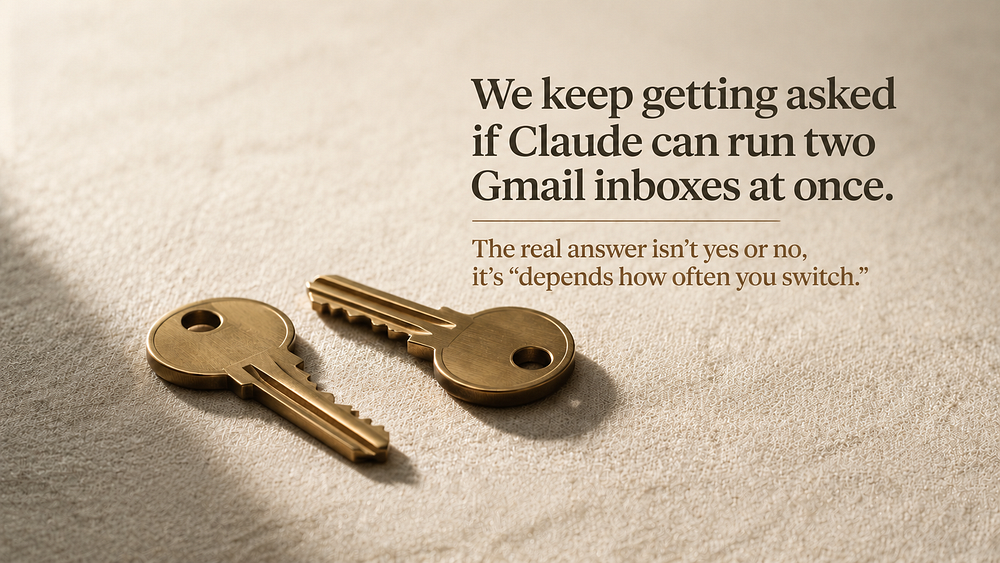
Wenn also jemand fragt, ob Claude einen persönlichen und einen geschäftlichen Posteingang gleichzeitig überwachen kann, ist die ehrliche Antwort nein, nicht über den integrierten Connector. Welches Konto auch immer verbunden ist, ist das einzige, das Claude in Gmail, Kalender und Drive zusammen sehen kann.
In diesem einen verbundenen Konto können Claude folgende Aufgaben tatsächlich erfüllen:
Führt Suchen in natürlicher Sprache in deinem Posteingang durch, anstatt exakte Keyword-Übereinstimmungen zu verwenden.
Entwirft E-Mails für dich, aber die Schaltfläche „Senden" bleibt in deinen Händen; Claude kann nicht in deinem Namen senden.
Liest Anhang-Metadaten (Dateinamen, Typen), aber nicht den Anhang-Inhalt selbst.
Extrahiert Text aus Docs, Sheets und Slides, überspringt aber eingebettete Bilder, Kommentare und vorgeschlagene Änderungen.
Das Entwurfs-verhalten überrascht die Menschen am meisten. Es ist eine bewusste Grenze, keine fehlende Funktion, da sie eine Person in den Loop bringt, bevor etwas den Posteingang verlässt.
Wie finde ich die beste Möglichkeit, mehrere Posteingänge mit Claude zu verwalten?
Das ist die Frage hinter den meisten Verwirren, und die ehrliche Antwort hängt davon ab, wie oft du tatsächlich wechselst.
Wenn du ein paar Mal pro Woche zwischen Posteingängen wechselst, kostet dich der Kontowechsel fast nichts. Gehe zu Einstellungen > Connectors, klicke auf deinen Google-Connector und trenne dann die Verbindung und verbinde dich mit dem anderen Konto erneut. Es dauert etwa eine Minute, und deine Speicher, Projekte und Chat-Verlauf rühren sich keinen Zentimeter. Nur der Posteingang ändert sich.
Wenn das meiste, was du vom zweiten Konto brauchst, bereits im ersten ankommt, richte Gmail-Weiterleitung oder eine Filterregel vom sekundären Konto zu dem, mit dem Claude verbunden ist, ein. Füge in Gmail die sekundäre Adresse als „Senden als"-Alias hinzu, damit Antworten immer noch unter dem richtigen Namen ausgehen können. Claude sieht tatsächlich beide, ohne dass je eine zweite OAuth-Verbindung entsteht.
Wenn es eine einzelne einmalige E-Mail ist, füge einfach den Text in den Chat ein. Keine Einrichtung erforderlich, und es ist wirklich die schnellste Option für etwas, das einmal passiert.
Wenn du drei, vier oder mehr Posteingänge betreibst, die alle gleichzeitig mit Claude kommunizieren müssen, skaliert keine der obigen Optionen gut, und da macht eine benutzerdefiniert gebaute Lösung mehr Sinn als eine weitere manuelle Workaround.
Klare Antworten auf die Fragen, die wir am häufigsten hören
F: Brauche ich zwei separate Claude-Abos für zwei E-Mail-Adressen?
Nein. Dein Claude-Konto, also dein Login, dein Speicher, deine Projekte und dein Chat-Verlauf, ist völlig getrennt vom Google-Konto, das zufällig verbunden ist. Ein zweites Abonnement kauft dir eine zweite getrennte KI, keine Lösung.
F: Wird Claude irgendwann mehrere Gmail-Konten nativ unterstützen?
Es ist eines der am meisten angeforderten Connector-Features in der Claude-Community, mit Entwicklern, die seit dem Start des Connectors Anfragen einreichen. Anthropic hat sich nicht zu einem Releasedatum verpflichtet. Angesichts der Tatsache, dass sein Connector-Verzeichnis im Laufe des vergangenen Jahres von einer Handvoll Integrationen auf weit über 200 expandiert ist, deutet die Trajektorie darauf hin, dass es eine Frage von Wann, nicht Ob ist – aber „irgendwann" ist kein Plan, auf dem du einen Workflow heute aufbauen kannst.
F: Kann Claude E-Mails senden, sobald ich Gmail verbinde?
Nein. Claude erstellt Entwürfe in deinem Gmail-Konto. Jeder Versand erfolgt immer noch manuell, absichtlich.
F: Was passiert mit meinem Claude-Speicher, wenn ich wechsle, welches Gmail-Konto verbunden ist?
Nichts ändert sich. Das Trennen und Wiederherstellen der Verbindung tauscht nur den Posteingang aus, auf den Claude zugreifen kann. Dein Gesprächsverlauf, gespeicherte Projekte und alles, das Claude über deine Arbeit gelernt hat, bleiben genau dort, wo sie waren.
F: Wann macht es Sinn, eine benutzerdefinierte Integration zu erstellen, anstatt Konten zu wechseln?
Wenn das Wechseln eher eine tägliche Gewohnheit als gelegentlich ist. Wenn du mehrmals täglich manuell die Verbindung trennst und wiederherstellst, oder regelmäßig E-Mails aus einem zweiten Posteingang kopierst und einfügst, summiert sich der zeitliche Aufwand schnell, und eine ordnungsgemäße Multi-Account-Einrichtung amortisiert sich schnell.
Ein realer Vergleich
Stellen dir ein zweipersoniges Gründungsteam vor, bei dem eine Person einen Support-Posteingang verwaltet und die andere Verkaufsanfragen übernimmt, wobei beide möchten, dass Claude beim Verfassen von Antworten hilft. Wenn sie ohnehin separate Claude-Sitzungen verwenden, löst der Kontowechsel oder die Weiterleitung das Problem ohne jegliche Engineering-Zeit.
Stellen dir nun ein Recruiting-Team vor, das vier Sourcing-Posteingänge über verschiedene Jobboards betreibt und möchte, dass eine Claude-Sitzung alle jeden Morgen sortiert. Das ist ein grundlegend anderes Maß an Problem. Weiterleitungsregeln vervielfachen sich schnell, werden brüchig und lassen jemanden einen Wirrwarr von Filtern pflegen, anstatt Recruiting-Arbeit zu leisten. Das ist der Punkt, an dem die Einstellung eines Entwicklers zum Aufbau einer ordnungsgemäßen Multi-Account-MCP-Integration – einer, die jedes Posteingang unabhängig authentifiziert und sie Claude als saubere, benannte Konten aussetzt – aufhört, übertrieben zu sein und zur offensichtlichen Bewegung wird.
Wichtigste Erkenntnisse
Claudes Google Workspace-Connector unterstützt jeweils ein Google-Konto und deckt Gmail, Kalender und Drive zusammen ab.
Claude entwirft E-Mails, sendet sie aber nie; das bleibt ein manueller, menschlicher Schritt.
Das Wechseln verbundener Konten dauert etwa eine Minute und berührt deinen Speicher oder Chat-Verlauf nicht.
Weiterleitung und Filter bewältigen die meisten zwei-Posteingang-Situationen ohne jegliche technische Arbeit.
Hochvolumige, Multi-Posteingang-Workflows sind besser geeignet für eine benutzerdefiniert gebaute Integration als für wiederholtes manuelles Wechseln.
Zusammengefasst
Das ist keine Sackgasse; es ist ein Schnappschuss des aktuellen Stands des Connectors mit klaren Signalen, dass Anthropic weiß, dass die Nachfrage existiert. Der richtige Schritt hängt ganz vom Umfang ab: leichte Wechsel brauchen nichts mehr als eine Minute Klickerei, während tägliches Multi-Posteingang-Chaos ein tatsächliches Bauen braucht.
Wenn du an dem Punkt bist, wo Workarounds dein Team jede Woche echte Stunden kosten, ist das ein Zeichen, dass du einen Entwickler brauchst, der komfortabel mit der Entwicklung auf Claudes Connector- und MCP-Architektur ist, nicht nur die sofortige Verwendung. Das ist ein spezifisches, praktisches Skillset – und genau die Art von Talent, die MyNextDeveloper Startups hilft zu finden, wenn vorkonfigurierte Tools nicht mehr genug sind.
TLDR
Claudes Gmail-Connector verbindet sich jeweils mit nur einem Google-Konto und deckt Gmail, Kalender und Drive zusammen ab. Es gibt keine native Möglichkeit, zwei Posteingänge in derselben Sitzung auszuführen. Claude kann E-Mails entwirfen, sendet sie aber nie; das bleibt ein manueller Schritt. Für leichte Wechsel dauert das Trennen und Wiederherstellen der Verbindung etwa eine Minute und berührt deinen Speicher oder Chat-Verlauf nicht; für sich überlappende Posteingänge lösen Weiterleitung und Filter es normalerweise ohne jegliche technische Arbeit. Teams, die mehrere aktive Posteingänge gleichzeitig jonglieren, werden besser durch eine benutzerdefiniert gebaute MCP-Integration bedient als durch wiederholtes manuelles Wechseln.
Möchtest du ein leistungsstarkes Remote-Tech-Team aufbauen?
Schau dir MyNextDeveloper an, eine Plattform, auf der du die besten 3% der Softwareentwickler findest, die tiefe Leidenschaft für Innovation haben. Unsere bedarfsgerechten, dedizierten und gründlichen Softwaretalent-Lösungen bieten eine umfassende Lösung für all deine Softwareanforderungen.
Besuche unsere Website, um zu erfahren, wie wir dir helfen können, dein perfektes Team zusammenzustellen.